iOS 18 — 26 Supported
OTA Update
Blocker
Download the configuration profile to prevent unwanted iOS updates on your iPhone or iPad. Follow the guide below after installation.
⬇️ Download Profile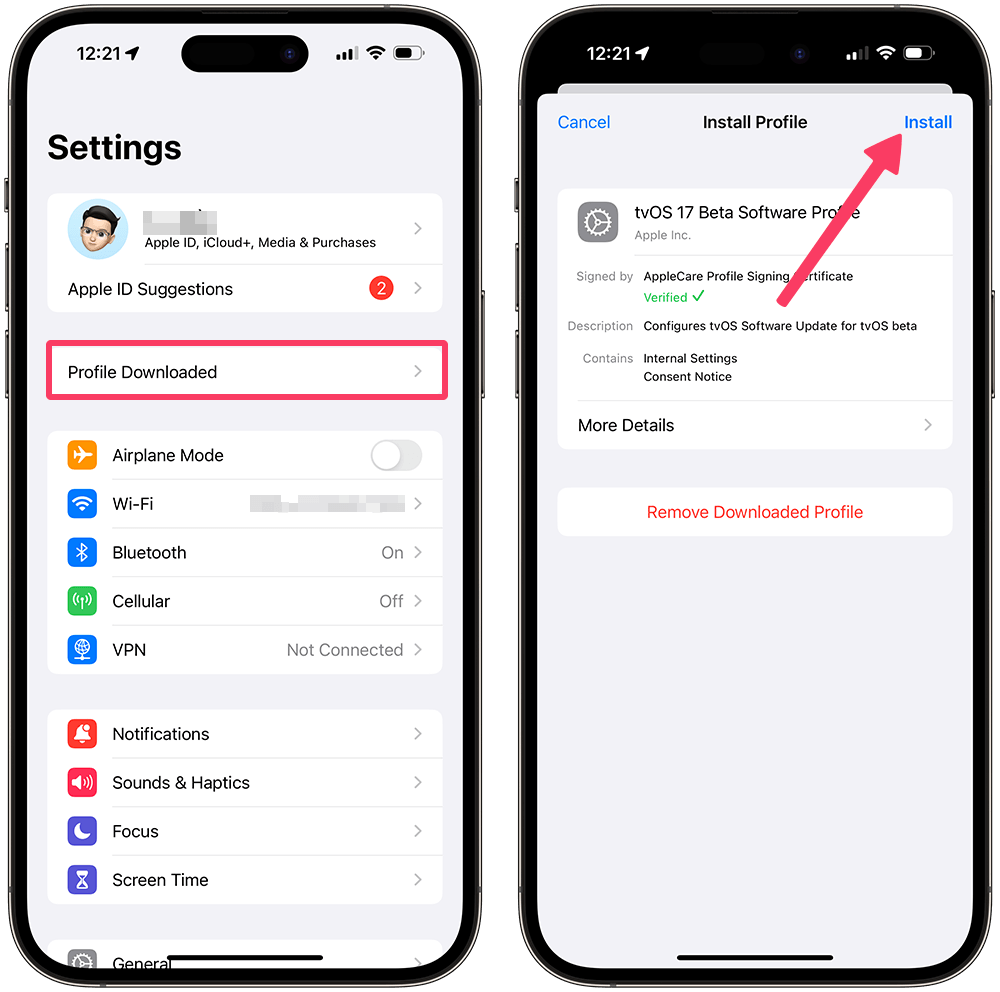
📖 Step-by-step installation guide
Download Profile
Install in Settings
Restart Device
What is OTA Update Blocker?
OTA (Over The Air) Update Blocker is a configuration profile that prevents your iPhone or iPad from automatically downloading and installing iOS updates. This is very useful if you want to stay on your current iOS version and avoid unwanted changes to your device.
Why Block OTA Updates?
✔️ Stay on your current iOS version permanently
✔️ Prevent automatic updates that may break your setup
✔️ Keep your MDM remove or unlock solution working
✔️ Avoid iOS updates that patch security tools
✔️ Works on iOS 18 up to iOS 26 and above
✔️ Prevent automatic updates that may break your setup
✔️ Keep your MDM remove or unlock solution working
✔️ Avoid iOS updates that patch security tools
✔️ Works on iOS 18 up to iOS 26 and above
How To Install — Step by Step
1
Click the Download Profile button above on your iPhone or iPad
2
Go to Settings — you will see "Profile Downloaded" at the top
3
Tap "Profile Downloaded" then tap Install in the top right corner
4
Enter your iPhone passcode if asked
5
Tap Install again to confirm
6
Restart your device — OTA updates are now blocked ✅
✅ Done! Your iPhone or iPad will no longer receive or install automatic iOS updates. You are now protected from unwanted OTA updates.
Supported Devices
✅ All iPhone models — iPhone 6 up to iPhone 17 Pro Max
✅ All iPad models — iPad / iPad Air / iPad Pro / iPad Mini
✅ iOS 18 up to iOS 26 and above
✅ No jailbreak required
✅ No PC needed — install directly on device
✅ All iPad models — iPad / iPad Air / iPad Pro / iPad Mini
✅ iOS 18 up to iOS 26 and above
✅ No jailbreak required
✅ No PC needed — install directly on device
⚠️ Important: This profile blocks OTA updates only. It does not affect your apps or other device functions. You can remove the profile anytime from Settings → General → VPN & Device Management.
Need Help?
Contact El Profesor GSM for support with OTA blocking, MDM removal, or any iPhone and iPad service:
💬 Comments